

1The baseline
1.1Three kinds of reference
A home's baseline can hold three kinds of reference:
| Reference | Where it comes from |
|---|---|
| 3D scan | A Matterport space you link. Each scan position gives views of the room it stands in. |
| Photos | Photos you upload, your Airbnb listing's photos, a Google Drive folder, or your Breezeway listing photos. |
| Video | The home's baseline walkthrough, marked room by room. |
None of the three is required, and more is better. The Baseline card counts which rooms have a reference, so you can see where a home is thin before an inspection is.
1.2The Baseline card
Every property's page has a Baseline card. It shows how many of the home's rooms have a reference, each of the three sources with its state, and the rooms themselves. A room with nothing yet reads No reference yet, with a button to add photos straight into it.
A home with no reference at all shows Add a baseline for the home's name instead, with Add a 3D scan, Add photos and Record a video. On a phone the card is a single line, such as 9 of 10 rooms covered; tap it to open the same screens.
1,098 views
19 photos
Add
No reference yet Add photos
On the Properties list, the Baseline column shows the same three sources for every home, and the No baseline filter lists the homes that have none of them yet.
2A good baseline
A baseline only helps where it shows the home the way your walkthroughs see it. These recommendations follow from how RapidEye compares each inspection with the baseline.
2.1How RapidEye uses it
Every inspection is compared room by room with the home's baseline and with its most recent inspections, up to three of them. For each room of today's walkthrough, RapidEye picks the baseline images that show that same room, and uses up to 15 of them. A baseline photo that does not look like any part of today's walkthrough is not used for that inspection.
So the best baseline is not the biggest one. It is the one whose photos look like what your cleaners film.
2.2Which source to use when
| Source | Use it when |
|---|---|
| Your own photos (Upload photos) | Always, if you can. Photos you or your team take of the home as guests find it match the walkthrough best. They are the way to cover a room nothing else covers. |
| Listing photos (Pull from your PMS, or your Airbnb listing) | To start fast: they are already there. They are marketing shots, often staged and tightly framed, so treat them as a starting point and add your own photos where the Baseline card shows a room with No reference yet. |
| A Google Drive folder | When you already keep a recent set of photos of the home, for example from an earlier inspection routine. Up to 500 photos per folder. |
| 3D scan (Matterport) | When the home has a Matterport space. A scan covers every room from every scan position. If it was shot dressed for marketing, the same caution as listing photos applies (2.5). |
| Baseline video (Record a video) | When you set up a new home. RapidEye marks which room each part of the walk is in, it becomes the first comparison for the home's inspections, and Create with AI can draft the home's checklist from it. Keep photos or a scan on the baseline too. |
More than one source is better than one. They add up room by room, and the Baseline card shows which rooms are covered.
2.3Photos: how many, and what they show
- Every room a cleaner films, including hallways, laundry, garage, patios, and pool or hot tub areas. A room with no reference is a room with nothing to compare against.
- Wide views, not details. Stand in the doorway for the whole room, then take one photo of each wall as the walkthrough would show it. A tight close-up of a lamp or a tap rarely matches anything in a walkthrough, so it is seldom used.
- Insides the cleaner opens: fridge, freezer, oven, cabinets, vanities, closets. Without a reference for them, a change inside is harder to flag.
- What guests move, take or break in view: remotes, lamps, art, rugs, cushions, the coffee maker, hot tub covers and latches.
- Up to 15 baseline images per room are used on each inspection, shared between your photos, 3D scan views and the baseline video. Past that, more photos of the same room add nothing. Cover each wall once rather than repeating one view.
- Rooms that look alike, such as two matching bedrooms, can be mistaken for each other. Frame each so what sets it apart is in view: the window, the art, the layout.
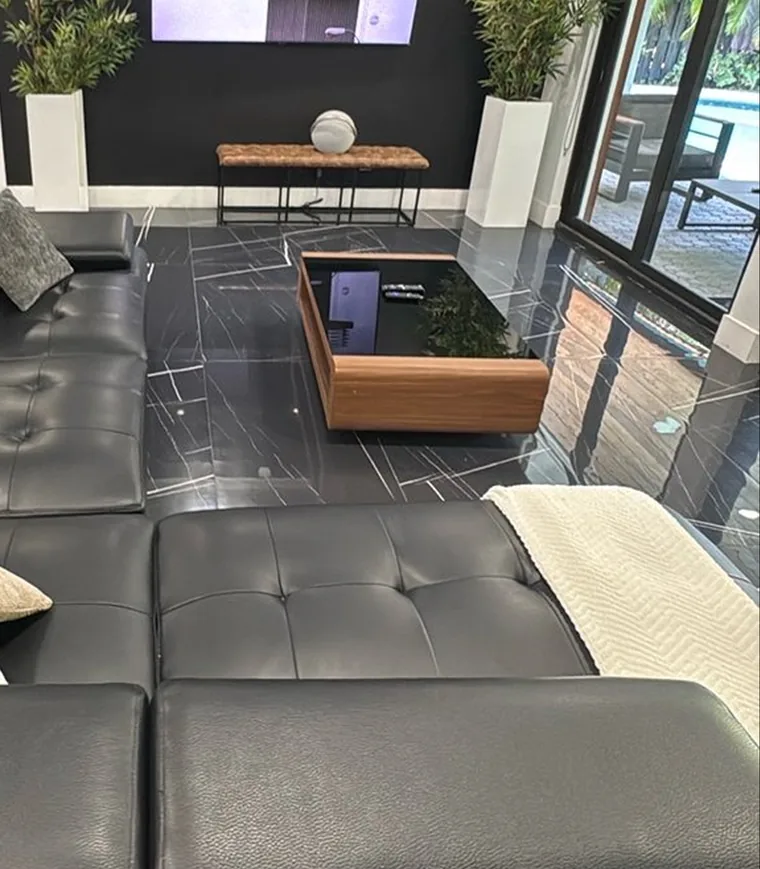
Both images are the same example room from RapidEye's website, not a customer's home.
2.4Light and angles
- Turn on every light in the room. Daylight or lamps does not matter; dark does.
- Wipe the lens first. A smudged lens blurs every photo.
- Hold the phone at chest height, level and pointed at the room, the way cleaners film. Photos taken from the same height and direction as the walkthrough match it best.
2.5Guest-ready, not photo-ready
Capture the home exactly as a guest should find it after a turnover: beds made, towels out, supplies stocked, trash cans and toilet brushes where they live. Do not dress it for a photo shoot.
RapidEye reports what differs from the baseline, so anything added or hidden for a shoot shows up on every inspection. Flowers placed for the shoot read as missing, and a trash can hidden for the shoot reads as something new. This is why your own photos usually beat a professional shoot.
2.6Walking a baseline video
- On the home's Baseline card, press Video (on a home with no baseline yet, Record a video), then choose Record now under Add baseline walkthrough. To replace a baseline video, open Video and press Record new baseline.
- Turn on every light and wipe the lens.
- Walk the home slower and more completely than a normal inspection: every room, every wall, every corner, and every inside, about two seconds per view.
- Record the whole home as one continuous video. Pause if you are interrupted; do not submit pieces.
- Keep the page open until the upload finishes.
- When it has been processed, check the rooms RapidEye marked (6.2).
The route and filming technique are the same as for any inspection: see the recording reference.
2.7When to refresh it
Refresh the baseline when what "correct" looks like has changed:
- when a home is onboarded, once setup is finished;
- after a renovation, refurnishing or restaging;
- when furniture, art, appliances or décor change for good.
Refreshing means replacing what is out of date, not only adding. Photos and a 3D scan are used on every inspection until you remove them, so an old photo of a sofa that is gone reads as a difference every time. Remove outdated photos (4.6), replace the scan (5.2), and record a new baseline video (6.1).
2.8A home with no baseline
RapidEye still inspects a home with no baseline. It finds damage and mess it can see in today's walkthrough, and from the second inspection on it compares with the home's recent inspections.
What it cannot do without a baseline is know how the home is supposed to look. An item missing since before the first inspection, or a lamp nobody ever filmed, cannot be flagged as missing, and the first inspection has nothing to compare against at all. To find these homes, filter the Properties list by No baseline.
2.9Owner stays and guest stays
A home has one baseline. If a home switches between how its owner keeps it and how guests find it, build the baseline in the guest-ready setup, since that is what every turnover restores.
The inspection right after an owner stay may show the owner's changes as findings. That is expected. If the owner's stay changes the home for good, such as new furniture or art moved to another room, refresh the baseline (2.7) so the change is not flagged on every turnover.
3Rooms
3.1Where rooms come from
You do not type the room list in. RapidEye suggests it from what the home already has: the rooms your baseline video walks through, in the order you walked them. Without a video, it uses your Airbnb photo tour, then your Breezeway rooms, then the rooms it finds in your photos.
3.2Suggestions and your changes
Open any room from the card to see the room view: every room on the left, and that room's photos, 3D views and video clips on the right. Anything RapidEye placed for you carries a Suggested badge. Press Looks right to confirm it, or select it and use Move to room.
Your changes are never overwritten. Once you confirm or move something, later suggestions leave it where you put it. Anything RapidEye could not place, and anything you move to Not in a room yourself, sits there. RapidEye does not suggest a room again for anything you moved there.
3.3Editing rooms
Use + Add room at the bottom of the room list. Each room's menu has Rename, Merge into… and Delete. Merging moves everything into the other room. Deleting a room moves its photos, views and clips to Not in a room, so nothing is lost, and RapidEye then suggests another room for them. Room names are unique within a home.
4Adding photos
Press Add photos in the room view, or on a room the card lists as No reference yet so the new photos land in that room. There are up to four places to add photos from.
4.1Upload photos
Upload from your computer or phone: JPEG, PNG, WebP or iPhone HEIC, up to 15 MB each. Each file shows Saved, Already here or the reason it was refused. A file that is refused never stops the others.
Photos of the home as guests leave it catch more than staged listing photos.
4.2From your Airbnb listing
Paste the listing link, which looks like airbnb.com/rooms/12345. RapidEye copies the listing's photos, and uses Airbnb's own photo tour titles ("Full kitchen", "Bedroom 2") to place them in rooms.
4.3From a Google Drive folder
Paste the folder link. The folder must be shared as Anyone with the link. Photos in its subfolders are included. Videos and other files are skipped. If the folder has no photos RapidEye can use, the message says how many files it skipped.
4.4Pull from your PMS
For a Breezeway home the card reads Pull from Breezeway. It refreshes the home's Breezeway listing photos, adding only the ones RapidEye does not already have.
The card is always there. When RapidEye can't pull photos for a home, it is greyed out with the reason, for example This home isn't linked to a Breezeway property., and a Contact support link. Upload, Airbnb and Drive still work for that home.
4.5What an import reports
Airbnb, Drive and Breezeway imports run in the background, one at a time per home. You can close the baseline while one runs, and its progress stays on screen while you work elsewhere in the app. When the import finishes, you see how many photos were added, how many were placed in rooms, how many need a room, how many were already here, and any that could not be saved. An import that adds nothing says why.
The same photo is only ever kept once per home, whatever it came from, so importing again is safe.
4.6Removing photos
In the room view, select photos and press Delete. They are gone from every inspection from then on. An import that is running while you delete will not bring them back, but importing the same source again later adds them again. Only photos can be deleted: 3D views and video stretches can be moved to another room, not deleted.
To take out every photo from one source, open Photos on the card, find the source (your uploads, Airbnb, Google Drive or Breezeway), and press Remove. It asks first, then removes all of that source's photos. Each source also has Re-import (Airbnb and Drive) or Pull again (Breezeway), and your uploads have Add more.
53D scan
5.1Importing a scan
Open 3D scan on the card, paste the Matterport link, and press Import scan. The space must be Public or Unlisted in Matterport. An import takes about 30 seconds to 2 minutes. RapidEye then suggests a room for each scan position's views, the same way it does for photos.
5.2Replacing or removing it
A home has one 3D scan. Replace with a new link imports the new scan, and RapidEye keeps using the old one until the new one has imported.
While a home's first scan imports, Cancel import stops it. A replacement cannot be cancelled once it starts; RapidEye keeps using the scan you had until the new one has imported.
Remove scan deletes the scan's views, and RapidEye stops using them from the next inspection. Photos and video are not affected.
6Baseline video
6.1Which video is the baseline
The home's baseline video is its newest finished baseline recording. To replace it, open Video on the card and press Record new baseline. How to record a good one is in the recording reference.
6.2Rooms in the walk
Once a baseline video is processed, RapidEye marks which room each stretch of the walk is in, and asks: RapidEye marked 7 rooms in this walk. Look right? Press Looks right to confirm, or Fix something to edit. A room you walk through twice gets two stretches. Each stretch in a room is one of that room's clips: open the room and they are listed under Video clips, and until any stretch has a room the Video source counts clips instead of rooms.
In the editor, select a stretch and Give it a room, or mark it Not in a room for hallways and stairs. Split at playhead cuts a stretch in two, and Merge with next joins it to the one after. Drag a boundary to move it. Undo steps back one edit. These edits change nothing until you press Save; Discard drops them. Reset to suggested is different: it asks first, then puts every stretch back to RapidEye's cut straight away, dropping the rooms you set, and takes a minute or two.
On a computer, Space plays, the arrow keys move one frame, S splits, and ⌘Z undoes.
7Who can change a baseline
Owners and admins can add, move and remove anything in a baseline. Members see the same card, rooms and video, with nothing on them that changes anything. Anyone on your account can still record a baseline walkthrough when they add a home, or re-record one from the home's inspection history. Roles are explained in adding people to your account.
8Messages you might see
| Message | What to do |
|---|---|
| That isn't an Airbnb listing link. It should look like airbnb.com/rooms/12345. | Copy the link from the listing's own page, not from a search result. |
| We couldn't read photos from that Airbnb listing. Airbnb sometimes blocks this. Upload the photos or use a Drive folder instead. | Download the photos from the listing and upload them, or put them in a Drive folder. |
| That folder isn't shared publicly. In Google Drive, set it to 'Anyone with the link', then try again. | In Drive, open Share, set General access to Anyone with the link, then import again. |
| That folder has no photos we can use. | Check that the folder holds JPEG, PNG, WebP or HEIC photos. |
| Breezeway has no listing photos for this home. | Add the photos to the home in Breezeway, or use another source. |
| We couldn't reach Breezeway just now. Try again in a few minutes. | Try again later. If it keeps happening, email support@rapideyeinspections.com. |
| This Matterport space isn't public. In Matterport, set it to Public or Unlisted, then try again. | Change the space's privacy in Matterport, then import again. |
| An import is already running for this home. It'll finish in a minute or two. | Wait for the running import, then start the next one. |
| IMG_0042.jpg is 22 MB. The limit is 15 MB. | Export the photo at a smaller size and upload it again. |
| Only workspace owners and admins can change a baseline. | Ask an owner or admin to make the change, or to make you an admin. |
| That isn't a Google Drive folder link. It should look like drive.google.com/drive/folders/... | In Drive, open the folder's Share menu and copy its link. |
| That folder has more than 500 photos. RapidEye takes up to 500 at a time, so split them into smaller folders and add each one. | Split the folder, then import each part. |
| The latest pull found no Breezeway listing for this home. Photos already added are kept. | Check the home still exists in Breezeway, or add photos another way. |
| This home isn't linked to a Breezeway property. | Use Contact support on the card, and add photos another way meanwhile. |
| Connect your PMS to pull listing photos. | Use Contact support on the card to connect your PMS, or add photos another way. |
| We don't pull photos from … yet. | The message names your PMS. Upload the photos, or import them from Airbnb or a Drive folder. |
| That isn't a Matterport link. It should look like my.matterport.com/show/?m=… | Open the space in Matterport and copy its link from the address bar or the Share menu. |