

1Inviting someone
1.1Open Team in Settings
Go to Settings, then Team, under Workspace (open it). Team only appears for owners and admins. If you cannot see it, ask whoever set up your account to make you an admin.
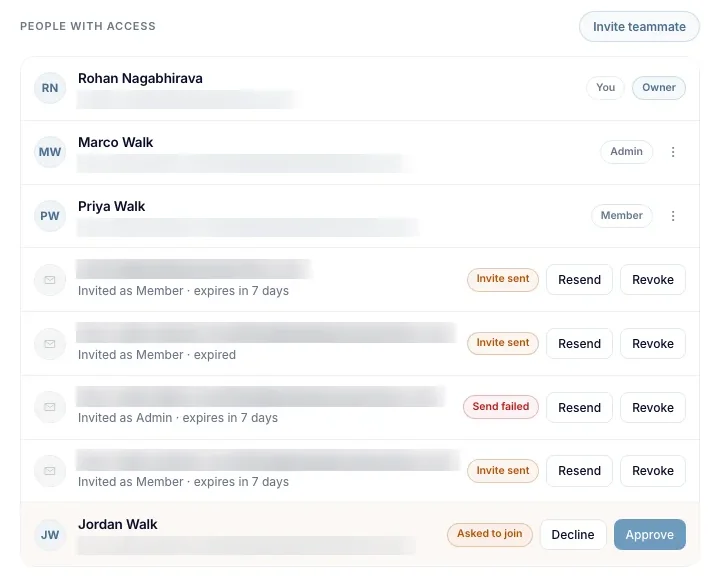
Team lists everyone with access under the heading People with access, with their role beside each name. Anyone you have invited but who has not signed in yet sits at the bottom of the same list.
1.2Send the invite
Press Invite teammate, enter their work email, and choose a role. Member is the right choice for almost everyone. Press Send invite.
You do not need to create anything for them first, and there is nothing to approve afterwards.
1.3What they receive
They get an email with a link that takes them into your account. The link works once and expires after seven days.
If they have never used RapidEye, the link asks them to pick a password. If they already have a login, it asks them to sign in instead. Either way they land in your account once they are through.
Until they click, their row shows Invite sent and how long the link has left.
2Roles
2.1Member and Admin
Both roles see every property and inspection on the account, and both can review and edit reports. Admin adds the ability to manage people and company settings: report emails, Slack, billing, the PMS connection and each home's baseline.
| Member | Admin | |
|---|---|---|
| See every property and inspection | Yes | Yes |
| Review and edit reports | Yes | Yes |
| See Team in Settings | No | Yes |
| Invite and remove people | No | Yes (members only; only the owner can remove an admin) |
| Change company settings | No | Yes |
2.2Who can change a role
An admin can make someone else an admin, but only the account owner can take it back. That keeps a single person able to undo any change to who manages the account.
Every account has exactly one owner. To hand the account to someone else, first make them an admin. Then the owner opens the menu on their row and chooses Transfer ownership…; the option only appears on an admin's row. The new owner takes over the account and you become an admin. Only the new owner can transfer it back.
3Managing invites
3.1The invite never arrived
Ask them to check their spam folder first. Some company mail filters hold outside links for a while before releasing them.
If their row shows Send failed rather than Invite sent, the email genuinely did not go out. Press Resend on that row.
3.2Resending and revoking
Every pending invite has Resend and Revoke beside it. Resend issues a fresh link, which replaces the old one, so any earlier email stops working. Revoke cancels the invite immediately.
Use Revoke if you sent an invite to the wrong address. Once the link is revoked it cannot be used.
3.3Removing someone
To remove somebody who already has access, open the menu on their row, choose Remove from team, then Remove. They lose access straight away. Only the owner can remove an admin, and the owner cannot be removed.
Their past work stays attributed to them, so your report history does not change.
3.4Requests to join
A colleague who signs up with Join my team and picks your company appears in Settings, Team as Asked to join. Owners and admins press Approve or Decline. The request goes only to your company's owners and admins. Unless your account was set up to admit your company's email domain automatically, nobody gets in without one of you approving them.