

What ChatGPT can do with RapidEye
Ask Which homes had damage, what a cleaner missed, which homes nobody recorded. ChatGPT reads your reports and answers.
Act Comment on and tag findings, sign off reports, and create tasks in your PMS, where your ChatGPT plan allows changes.
Set up Add homes, start walkthroughs and write or copy checklists. Owners and admins can also build baselines and invite teammates.
It works in every workspace you're in, with your role in each. ChatGPT may make some changes, such as adding a comment, without asking first, so choose Read only if it should only look.
Connect in five steps
You need a RapidEye account as an owner, admin or member, and ChatGPT on the web. Every ChatGPT plan that adds custom MCP servers can ask questions; making changes depends on your plan (when this was written, OpenAI offered it on Business, Enterprise and Edu). This is the address you give ChatGPT:
https://api.rapideyeinspections.com/mcpOpen Plugins in ChatGPT
On chatgpt.com, open Plugins, press Add, then Add custom MCP server.
In a Business, Enterprise or Edu workspace, your ChatGPT admin decides whether you see this.
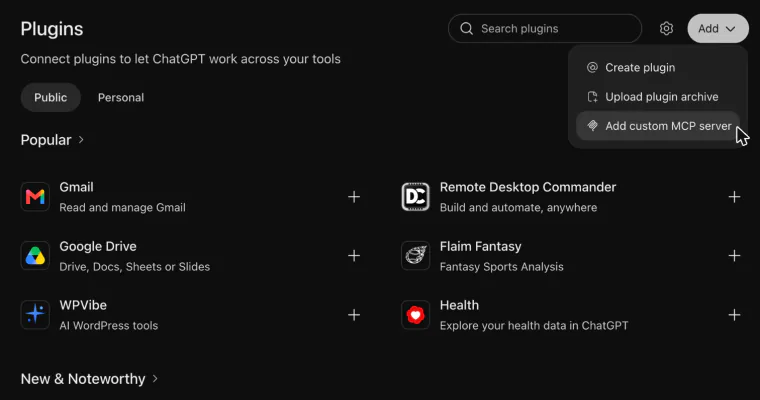
Add RapidEye
Name it RapidEye, paste the address above as the Server URL, choose OAuth, tick I understand and want to continue, and press Create as a plugin.
Optional: upload RapidEye's icon in the Icon field.
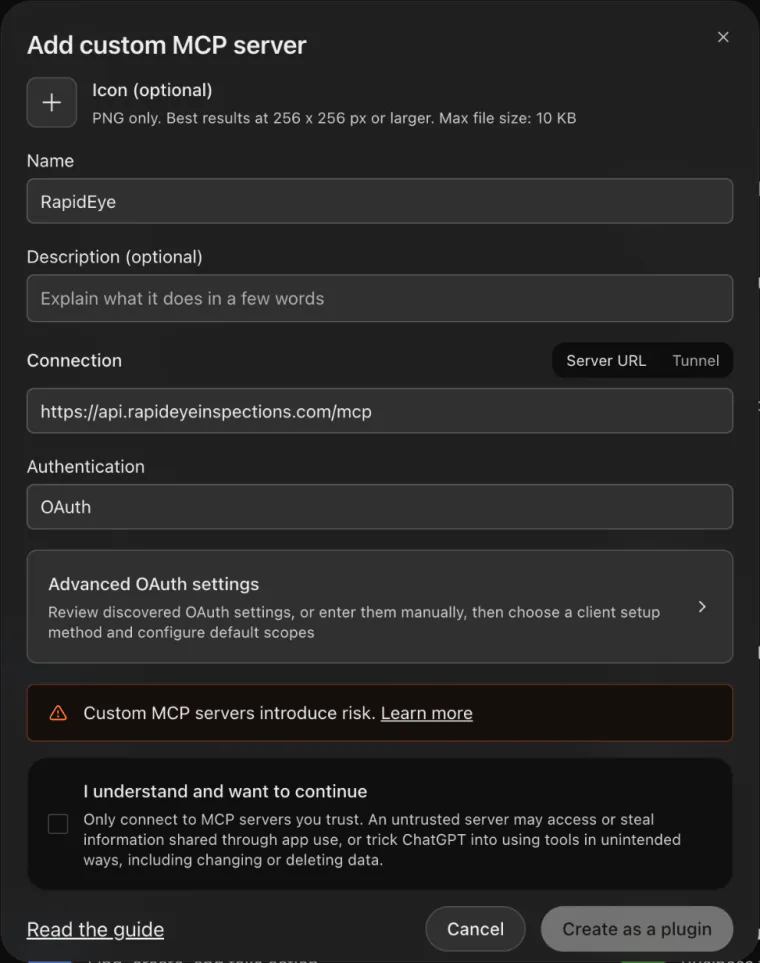
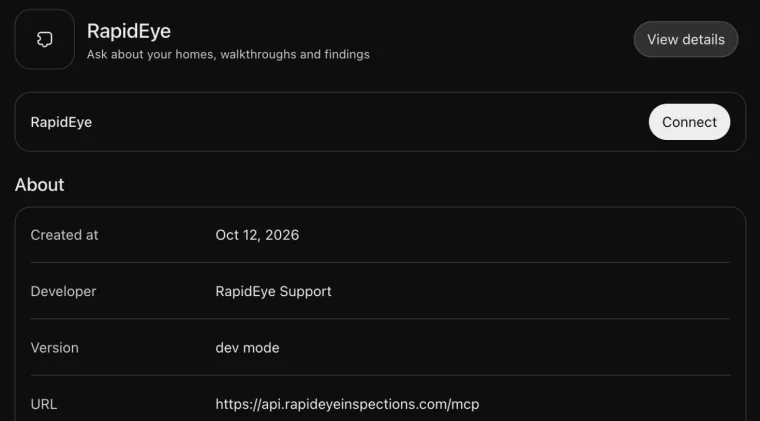
Connect it
Press Connect next to RapidEye. A RapidEye page opens; sign in with your RapidEye email or Google account if it asks.
Choose what ChatGPT can do
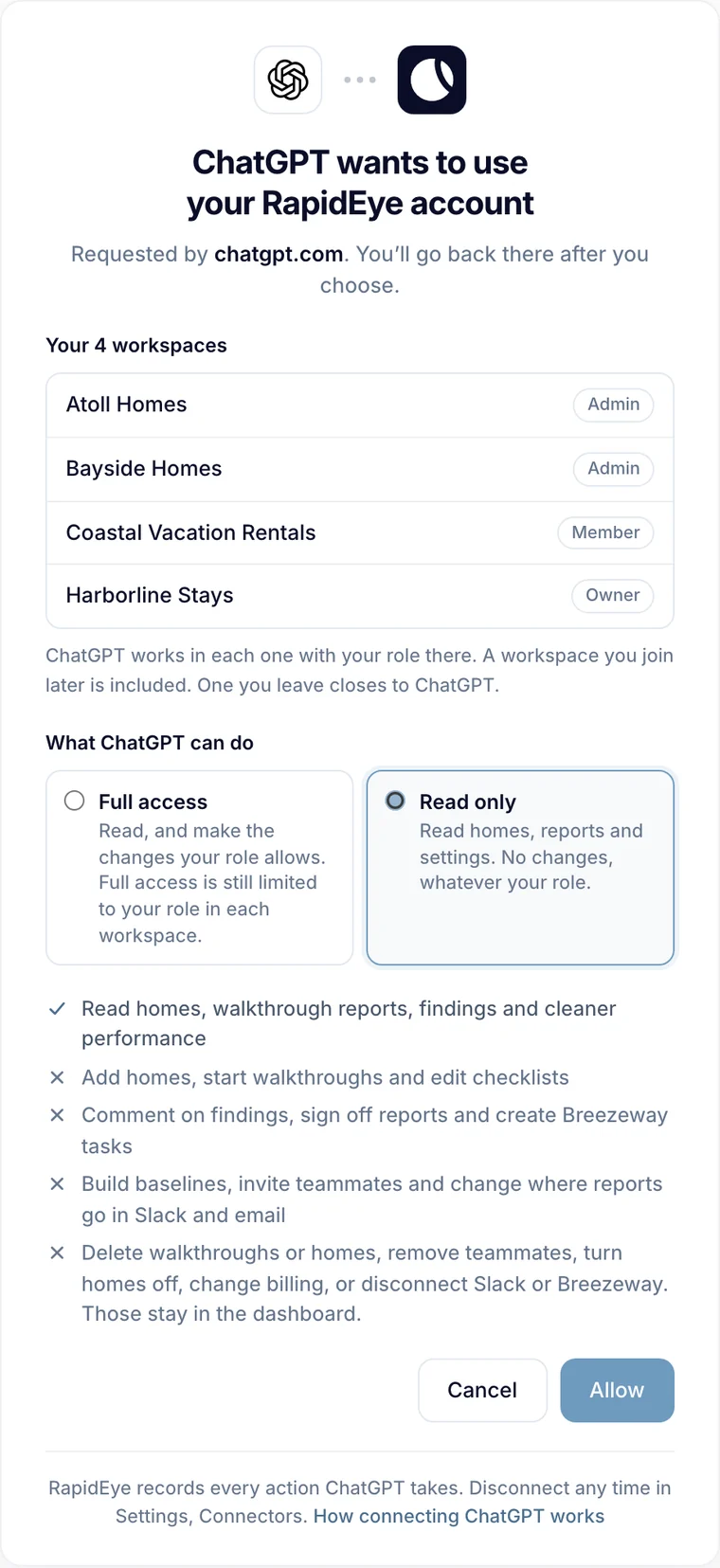
Pick Full access or Read only, then press Allow. Every workspace you're in is listed with your role.
The workspace names here are examples.
Ask away
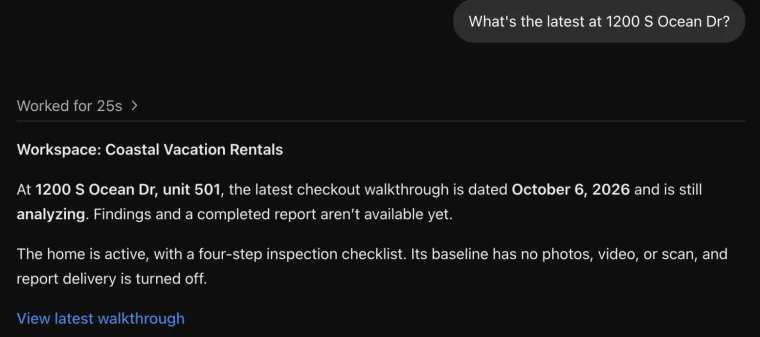
In a chat, type @, pick RapidEye, and ask.
The workspace names here are examples.
What you can ask
- Which homes had damage this week?
- What did the cleaner miss at Harbor View 4B?
- Which homes has nobody recorded in the last two weeks?
- Who skipped the most checklist steps in September?
- What's left to set up Harbor View 4B?
- Copy Harbor View 4B's checklist to our three new homes.
In more than one workspace? Name the workspace or the home. For a broad question, ChatGPT checks each workspace and labels every answer with the one it came from.
Read only or Full access
Full access lets ChatGPT make the changes your role allows in each workspace; Read only lets it look and never change anything.
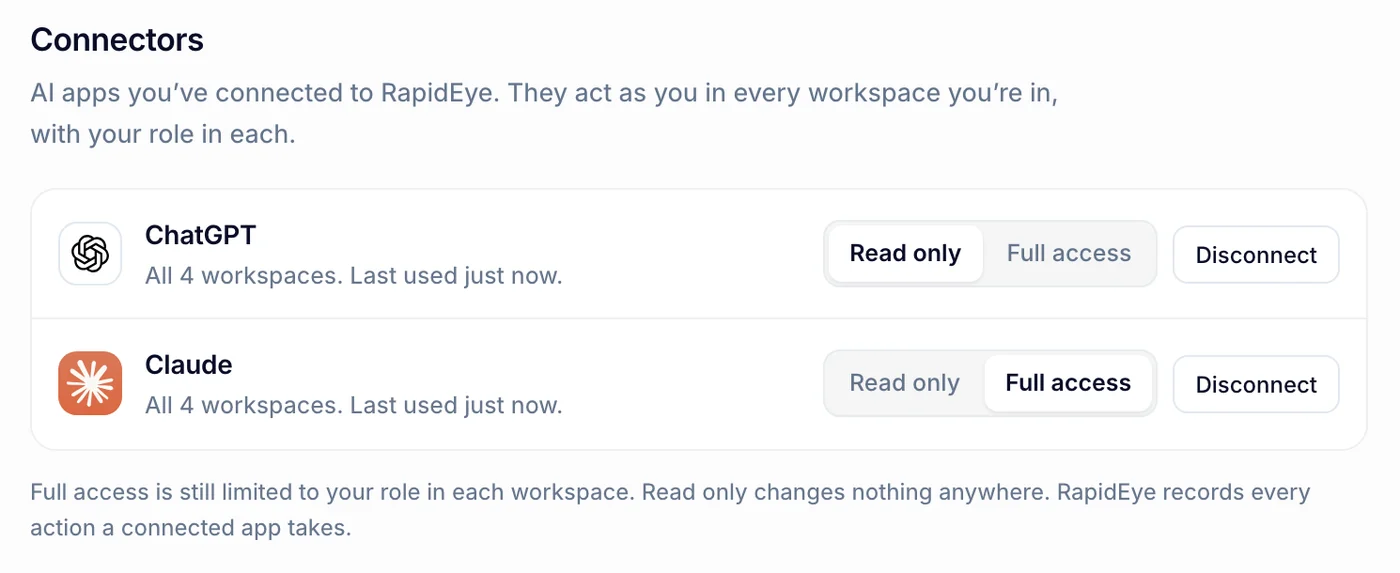
Switch, or disconnect, any time in RapidEye under Settings, Connectors. A switch applies from ChatGPT's next request.
Good to know
- Deleting, billing, removing people and your PMS keys stay in the dashboard. Ask for one and you get a link to the right page instead.
- Signing off a report can't be undone, so ask for it only when you mean it and name the reports.
- RapidEye records every action a connected app takes.
- A connection ends when you disconnect it, after 90 days unused, or when you leave every workspace. Leaving one workspace closes only that one.
- RapidEye staff accounts and the support login can't connect.
Using Claude instead? See Connect Claude to your properties.