
1Reports in Slack
1.1Add RapidEye to Slack
Owners and admins of your RapidEye account can connect Slack. Press the button below, sign in to RapidEye if you are not already, then press Add to Slack in Settings, Integrations, Slack. Slack asks you to pick a workspace and approve RapidEye, then sends you to Settings, Report delivery to choose a channel. It takes about a minute.
 Add to Slack
Not your Slack admin? Copy your install link in RapidEye under Settings, Integrations, Slack, and send it to them. The link opens a page showing your company name, then takes them to Slack to approve. They do not need a RapidEye account.
The same Add to Slack button lives inside RapidEye under Settings, Integrations, Slack (open it). Connecting and disconnecting Slack happen there; choosing channels happens in Report delivery. Everyone on your account can open both to see where reports go; only owners and admins can change them.

1.2Choose a channel
Channels are chosen in Settings, Report delivery (open it). Until Slack is connected, the Slack part of that page says to set it up on the Integrations page.
Pick one channel for your reports. Every property posts there unless you give it a channel of its own.
Public channels work straight away, because RapidEye joins them by itself. Slack does not let an app join a private channel, so for a private one, type /invite @RapidEye in that channel, then press Refresh list under the picker and choose it.
1.3A channel for each property
To send each property to its own channel, name each channel after the property's street address, including the house number, such as ocean-dr-1200. Then press Match channels to properties in Settings, Report delivery.
RapidEye links a property only when the house number and street clearly match a single channel. Anything less clear is left for you to rename or route by hand, and any property without its own channel still posts to your default channel. If more channels match at once than RapidEye links in one go, it links none of them and Report delivery asks you to email support@rapideyeinspections.com, and we connect them for you.
1.4What RapidEye can do in your workspace
Slack lists these permissions when you approve the app. We ask for the full set once, so new features never make you reinstall. Today RapidEye uses only the three groups marked Used today.
| Permission | What it is for | Status |
|---|---|---|
Post messageschat:write chat:write.public chat:write.customize | Posts each reviewed inspection that has findings, and the morning digest. It can post in a public channel without being invited first. | Used today |
See and join channelschannels:read groups:read channels:join | Lists your channels for the channel picker and joins the public one you choose. It only sees a private channel after someone invites it. | Used today |
Read the workspace nameteam:read | Lets RapidEye read your workspace's details for future features. Settings already gets the workspace name from Slack when you approve the app. | For upcoming features |
Read replies and mentionschannels:history groups:history im:history mpim:history app_mentions:read | Lets a future RapidEye assistant answer questions about a report in its thread. It can only read conversations it has been added to. | For upcoming features |
Send direct messagesim:read im:write mpim:read mpim:write | Lets RapidEye message one person, or a small group, about a finding that is theirs to handle. | For upcoming features |
Look up peopleusers:read users:read.email usergroups:read | Shows in Settings, Integrations, Slack which Slack person approved the app, when they used an install link. Later, it lets a post mention the right teammate by name or email. | Used today |
Share files and reactionsfiles:read files:write reactions:read reactions:write | Uploads a report or finding photos, and marks a finding as handled with a reaction. | For upcoming features |
Slash commandscommands | Reserved for commands such as looking up a property from Slack. | For upcoming features |
RapidEye acts only as its own bot. It never signs in as you or anyone on your team, and it cannot see private channels or direct messages it has not been added to.
2When RapidEye notifies you
Nothing is sent the moment a video uploads. RapidEye reviews every inspection first, and notifications go out when that review is finished.
2.1An inspection with findings
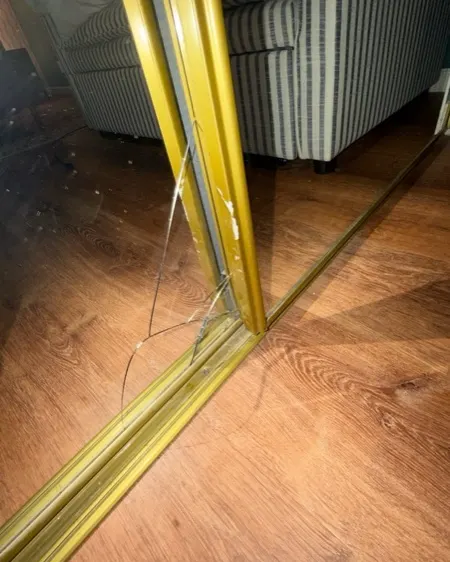
You get a Slack post and a report email, whichever you have set up, as soon as the review finishes. Each one leads with the most serious finding and its photo, shows up to two more, suggests a task, and links to the full report. If your account is connected to a property management system such as Breezeway, a button opens a new task for the finding there.

2.2A clean inspection
An inspection with no findings gets no message of its own. It is marked reviewed for you and counted in the next morning digest.
2.3The morning digest
Once a day at 14:00 UTC (10am Eastern in summer, 9am in winter), RapidEye sends a digest of every inspection reviewed in the past 24 hours, findings first, with clean inspections counted at the bottom.
The email digest goes out whenever anything was reviewed. The Slack digest skips days with no findings, so a quiet channel stays quiet.
3Email
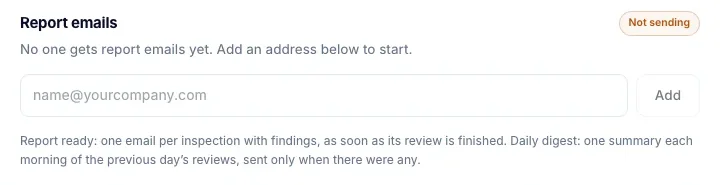
Report emails and the morning digest go to the addresses on your account, and owners and admins manage them. Open Settings, then Report delivery (open it); the email part is under Email, below Slack. Type an address under Report emails and press Add. For each address, tick Report ready for an email when each report with findings is ready, Daily digest for the morning summary, or both. Remove takes an address off. Press Save changes to apply your changes; nothing changes until you do.
We can also send a property's report emails to its owner. Tell us the property and the owner's email address.
4Troubleshooting
4.1Nothing has posted
RapidEye posts after it finishes reviewing an inspection, and an inspection with no findings gets no post of its own. A quiet channel can simply mean everything came back clean.
If you expected a post, open Settings, Report delivery. It says which channel reports go to. If it says Not receiving yet, choose a channel.
4.2Private channels
RapidEye joins public channels by itself. A private channel needs an invite first, and then it shows up in the channel picker:
- In Slack, open the private channel and type
/invite @RapidEye. - In RapidEye, open Settings, Report delivery and press Refresh list under the channel picker.
- Pick the channel and save.
A channel that RapidEye already posts to keeps working if you make it private later. Slack keeps the channel and its members, RapidEye included.
4.3You cannot add apps to Slack
Some workspaces only let Slack admins add apps. Copy your install link from Settings, Integrations, Slack, under Not your Slack admin?, and send it to your Slack admin. The link opens a RapidEye page showing your company name, so they can see which account they are connecting; pressing Continue to Slack takes them to Slack to approve. They do not need a RapidEye account. The link works once and expires after 7 days.
4.4Disconnecting or switching workspaces
In Settings, Integrations, Slack, press Disconnect Slack. That removes RapidEye from your workspace and stops Slack posts. Your reports stay in RapidEye. To use another workspace, press Add to Slack again and pick it on Slack's screen.
4.5Someone removed the app
Posts stop, and the person who connected Slack gets an email with a link to reconnect. Reconnecting takes the same minute as the first time.
4.6You already use a shared channel
If your reports already arrive through a Slack channel you share with RapidEye, nothing changes for you. To move to the RapidEye app instead, email support@rapideyeinspections.com and we will switch you over without a gap in reports.